- Categories (3)
- Guides - Platform
- Guides - Reviews
- Technical
ADA Compliance for Websites: Requirements and Fixes



We hope it didn’t take a lawsuit, or a threatened lawsuit, to land you here. Whatever the reason, you’re in the right place.
This guide explains what ADA compliance means for your website, why it matters legally, and exactly what you need to do to bring your site into compliance. We’ve kept it practical, jargon-free, and focused on what actually matters.
Let’s dive in.
Key Takeaways
- Digital spaces were once not explicitly mentioned in the original ADA act, but today, courts interpret websites and online platforms as “public accommodations,” making them subject to ADA compliance.
- The ADA’s web accessibility requirements are based on the Web Content Accessibility Guidelines, with 2.2 being the latest version.
- Websites need to adhere to the four core principles of WCAG, which means your site needs to be perceivable, operable, understandable, and robust.
- A combination of automated and manual web accessibility testing is recommended to achieve full compliance.
What Is ADA Compliance?
ADA compliance is the legal responsibility of certain businesses to be accessible to people with disabilities, as required by the Americans with Disabilities Act of 1990.
Traditionally, this meant physical accessibility: ramps, accessible parking, widened doorways. More recently, courts have extended this requirement to websites, ruling that commercial websites must be usable by blind and visually impaired users, and others with applicable disabilities.
What Is the ADA?
The ADA is a landmark civil rights law that prohibits discrimination based on disability. Think of it as the disability equivalent of the Civil Rights Act of 1964, which made discrimination based on race and religion illegal.
The ADA has three parts, called “titles.” Title I covers workplace discrimination. Title II covers government agencies. Title III (the one most relevant to commercial website owners) prohibits discrimination by private businesses that serve the public.

Who Has to Comply?
Title III applies to “places of public accommodation.” The law’s definition is broad and includes hotels, restaurants, theaters, grocery stores, banks, pharmacies, hospitals, gyms, schools, and many more. If your business serves the general public, it almost certainly falls under Title III.
There are a few exceptions, though. Religious organizations and private clubs are exempt, and there is some variation between states. New York and California allow plaintiffs to seek damages in addition to injunctive relief, while Florida and Texas generally do not. But the federal obligation to fix violations applies everywhere.
Are Websites Covered Under the ADA?
This is the first question most business owners ask.
Short answer: Failure to comply with the ADA on your website or mobile app is likely to result in an ADA compliance lawsuit. Possibly a lawsuit filed in a part of the country far away from your home.
Federal courts have agreed. In Robles v. Domino’s Pizza, a federal court ruled that Domino’s was subject to Title III on both its website and mobile app. Netflix, Amazon, and many others have faced similar claims.
The Numbers Tell the Story
Web accessibility lawsuits are not slowing down. In 2024, plaintiffs filed 2,452 federal web accessibility cases, accounting for 28% of all ADA Title III lawsuits that year. Then in 2025, filings jumped 27% to 3,117 cases, representing 36% of all federal Title III claims. That’s more than one in three ADA lawsuits now targeting website accessibility specifically.
Settlements following a demand letter typically range from $5,000 to $20,000, and that doesn’t include your own legal costs to negotiate or defend.
Bottom line: If your website isn’t accessible, you are a potential litigation target. The good news is that compliance is well within reach.
Making your site accessible isn’t just about avoiding high legal costs, though.
As accessibility advocate, Joshua Baisel, puts it:

Who Does Web Accessibility Serve?
Before getting into the technical requirements, it helps to understand who web accessibility is actually for. An accessible website benefits users across four broad disability categories:
- Visual impairments. Users who are blind, have low vision, color blindness, or conditions like tunnel vision. Many rely on screen readers, which read page content aloud.
- Auditory impairments. Users who are deaf or hard of hearing, who depend on captions and transcripts for audio and video content.
- Motor impairments. Users who cannot use a traditional mouse and navigate using a keyboard alone, a switch device, or a sip-and-puff device.
- Cognitive impairments. Users with ADHD, dyslexia, autism, or other conditions that affect how they process and understand on-screen information.
By far, the most common basis for ADA web accessibility lawsuits is the failure to support screen readers for blind and visually impaired users, particularly on shopping cart, checkout, and contact form pages. Full compliance, however, means addressing all four categories above.
Bottom line: Roughly 1 in 4 American adults lives with some form of disability. That’s not a niche audience. It’s a significant portion of your potential customers, and the group most likely to encounter barriers on your site.
This quote from the Web Access Matters Podcast host, Pedro Velhinho, is another excellent way of viewing web accessibility:

WCAG — The Standard for ADA Compliance
The Web Content Accessibility Guidelines (WCAG), published by the World Wide Web Consortium (W3C), are the most widely recognized web accessibility standard. WCAG 2.1 Level AA is currently the practical benchmark for ADA compliance, cited by the DOJ, federal judges, and accessibility experts. WCAG 2.2, released in October 2023, is the latest version and introduces additional criteria around mobile usability and cognitive accessibility, which is worth being aware of as a higher bar to aim for.
For private businesses under Title III, there is still no formal web-specific ADA regulation, but the legal landscape shifted significantly in April 2024, when the DOJ did issue a final rule formally requiring state and local government websites to meet WCAG 2.1 Level AA under Title II of the ADA.
While Title III businesses aren’t yet subject to a formal equivalent, this ruling signals clearly where the DOJ stands, and courts continue to apply the same standard in private-sector cases.
A website that meets WCAG 2.1 Level AA is unlikely to be found non-compliant with the ADA, and is far less likely to be targeted by web accessibility lawsuits.
Here are just a few examples of ADA compliant websites that you can use as a reference.
ADA Compliance Checklist
The following checklist covers the most important WCAG 2.1 Level AA requirements, grouped so you can tackle them efficiently. Your developer or an accessibility consultant can handle the technical fixes, and this checklist gives you and them a clear, actionable picture of what needs to be done.
Images and Visual Content
Screen readers cannot interpret images. Alt text (alternative text) is what they read aloud instead. Getting this right is one of the highest-impact and most frequently litigated areas of web accessibility.
| Item | How to Test | How to Fix |
|---|---|---|
| Meaningful images have descriptive alt text | Inspect the image element in your browser’s developer tools and check the alt attribute, or run an automated scan. | Add a concise, accurate description of the image’s content or purpose. E.g.: alt=”Woman holding a blue bag with floral patches, marked 30% off.” |
| Decorative images use empty alt text | Identify purely decorative images (borders, background patterns). Check their alt attribute. | Set alt=”” for decorative images so screen readers skip them silently. Do not omit the attribute entirely. |
| Complex images (charts, infographics) have a text description | Look for charts and graphs. Is there a text summary nearby or linked? | Add a text summary of the key information conveyed by the chart, either below the image or linked from it. |
| Images of text are avoided | Look for banners or buttons that are images containing text. | Replace with real HTML text styled with CSS. If unavoidable (e.g., logos), provide equivalent alt text. |
Text, Headings, and Page Structure
Well-structured content helps everyone, including screen reader users and people with cognitive impairments, understand and navigate your pages efficiently.
| Item | How to Test | How to Fix |
|---|---|---|
| Each page has a unique, descriptive title | Check the <title> tag in your page source. It should describe the specific page, not just your brand name. | Update <title> tags to be descriptive: e.g., “Men’s Running Shoes | Acme Sports” rather than just “Acme Sports.” |
| Headings follow a logical hierarchy (H1 → H2 → H3) | Use a browser extension (e.g., HeadingsMap) or developer tools to view heading structure. There should be exactly one H1 per page. | Restructure heading tags to follow a logical order. Never skip heading levels (e.g., jumping from H1 to H3). |
| Link text is descriptive (no “click here” or “read more”) | Scan your pages for vague link text. Screen readers list links out of context, so “read more” is meaningless. | Rewrite links to describe the destination: e.g., “Read our full ADA compliance guide” instead of “Click here.” |
| Text can be resized to 200% without losing content or functionality | In your browser, zoom to 200% (Ctrl/Cmd +). Check that nothing overlaps, gets cut off, or disappears. | Use relative font size units (em, rem, %) rather than fixed pixels. Avoid fixed-height containers that clip text when it grows. |
Color and Contrast
Color contrast affects users with low vision and color blindness. WCAG 2.1 AA requires a contrast ratio of at least 4.5:1 for normal text and 3:1 for large text (18pt or 14pt bold).
| Item | How to Test | How to Fix |
|---|---|---|
| Text has sufficient contrast against its background | Run your primary text and background color combinations through the WebAIM Contrast Checker (webaim.org/resources/contrastchecker/). | Darken the text color or adjust the background until the contrast ratio reaches 4.5:1 for body text. |
| Color is not the only way information is conveyed | Look for error messages, required field markers, charts, or status indicators that use color alone. | Add a text label, icon, or pattern alongside any color indicator. E.g., include the word “Required” alongside a red asterisk on form fields. |
| Keyboard focus indicators are clearly visible | Tab through your page. Every focused element (links, buttons, form fields) should show a visible outline or highlight. | Ensure :focus CSS styles are visible and high-contrast. Never suppress the browser default with outline: none unless you replace it with something equally visible. |
Keyboard Navigation
Users with motor impairments often navigate using only a keyboard or an assistive device that emulates one. Every function on your site must be reachable and usable without a mouse.
| Item | How to Test | How to Fix |
|---|---|---|
| All functionality is keyboard accessible | Attempt to complete all key tasks (navigating menus, submitting forms, using modals) using only Tab, Shift+Tab, Enter, and arrow keys. | Ensure all interactive elements — buttons, links, dropdowns, sliders — can receive keyboard focus and be activated with the keyboard. |
| A “Skip to main content” link is provided | Press Tab on page load. The first focusable element should be a skip navigation link. | Add a visually hidden link at the top of the page that becomes visible on focus and jumps to the main content area. |
| Navigation is consistent across pages | Visit multiple pages and check that menus, headers, and footers appear in the same location and order. | Use consistent header/footer components across your site. Do not reorder navigation elements from page to page. |
| No keyboard traps exist | Tab through interactive components like modals and date pickers. You should always be able to exit with Tab or Escape. | Manage focus correctly in modals. When a modal opens, trap focus inside it. When it closes, return focus to the element that triggered it. |
Forms
Forms are an important touchpoint for ADA lawsuits, particularly shopping cart, checkout, and contact forms. Every form element must be clearly labeled and usable by all users.
| Item | How to Test | How to Fix |
|---|---|---|
| All form fields have associated labels | Click on a form field’s label text. The cursor should jump to the corresponding input. Or inspect the HTML: each input should have a matching <label> with a for attribute. | Add explicit <label> elements linked to each input via matching for and id attributes. Do not rely on placeholder text alone as a label. |
| Required fields are clearly identified beyond color alone | Look at required fields. Are they marked only with color, or also with a text label? | Label required fields with both a visual indicator and a text description, such as “Required” or an asterisk with a visible legend explaining what it means. |
| Error messages are specific and actionable | Submit a form with intentional errors. Read the messages that appear. | Write clear error messages that explain what went wrong and how to fix it. E.g., “Please enter a valid email address” — not just “Error” or “Invalid input.” |
| Forms can be completed and submitted by keyboard | Tab through a complete form and submit it using Enter, without using the mouse at any point. | Ensure submit buttons are keyboard-focusable. Avoid JavaScript-only form submission tied to mouse events. |
Multimedia: Video and Audio
Any audio or video content on your site must be accessible to users who cannot hear or see it.
| Item | How to Test | How to Fix |
|---|---|---|
| All videos have accurate closed captions | Play your videos with the sound off. Are captions available and accurate — not just rough auto-generated text? | Add closed captions to all video content. For YouTube-hosted videos, edit the auto-generated captions for accuracy. For self-hosted video, provide a properly timed SRT or WebVTT file. |
| Audio-only content has a text transcript | Look for podcasts or standalone audio clips. Is a full text transcript published alongside them? | Provide a complete text transcript for any audio-only content, published on the same page or clearly linked from it. |
| No content auto-plays for more than 3 seconds | Load your pages and observe whether any audio or video starts playing automatically. | Disable auto-play, or provide a clearly keyboard-accessible pause, stop, or mute control at the very start of the page. |

Once you work through this checklist, you can use LiveStatement to publish your accessibility statement.
How to Test Your Website
No single tool catches everything. The most effective approach combines automated scanning with hands-on manual testing.
Automated Scanning
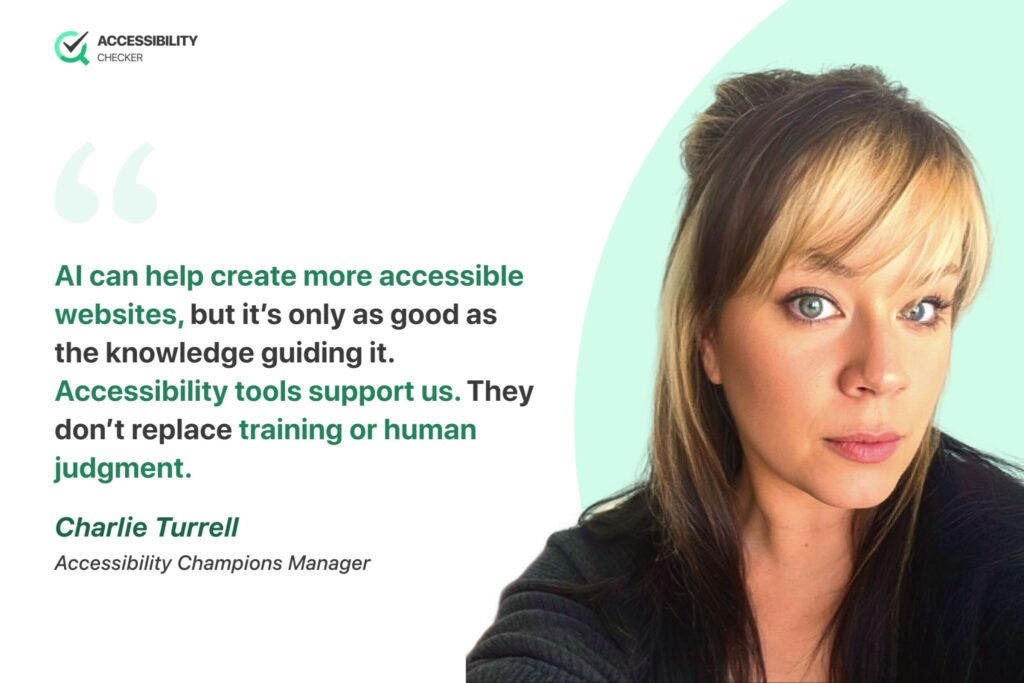
Automated tools like AccessibilityChecker.org is a great starting point. By helping you identify specific issues and explaining how to address them, the web accessibility process is already simplified in a big way, especially with AI-assisted remediation being a key feature of SmartFix.
That said, automated tools are only designed to catch some accessibility problems. Manual testing is still essential for thorough compliance, which is why our platform incorporates these checks, too.
Accessibility Champions Manager, Charlie Turrell, really explained this well when she said:
Manual Testing
To catch the rest, go hands-on:
- Keyboard-only test: Disconnect your mouse and navigate your entire site using only Tab, Shift+Tab, Enter, and arrow keys. Can you access and use everything?
- Screen reader test: Use a free screen reader (NVDA on Windows, VoiceOver on Mac or iOS, TalkBack on Android) to navigate your site and verify it makes sense when read aloud.
- Zoom test: Increase your browser zoom to 200%. Does content reflow cleanly, or do elements break and overlap?
- Contrast check: Run your primary text and background color combinations through the AccessibilityChecker.org Contrast Checker.
For interactive elements and single-page app content that automated crawlers can miss, the Chrome Extension lets you test directly as you browse.
Professional Accessibility Audit
For the most thorough results and the strongest protection from litigation, consider hiring a certified accessibility specialist to conduct a formal WCAG audit. A documented audit provides evidence of your compliance efforts, which can be valuable if you ever face a demand letter or lawsuit.
With Compliance Vault, you can store your audit results, VPAT, and remediation history centrally, so you have organized evidence ready if you’re ever challenged.
Bottom line: Start with a free automated scan to catch the obvious issues, then test manually to find what tools miss. If your site is complex or you’ve already received a demand letter, a professional WCAG audit is worth the investment. The documentation alone can be invaluable in your defense.
Need Help Fixing These Issues? ADA Compliance Services
Working through this checklist yourself is possible, but for most businesses, it’s a significant time investment, and getting it wrong can leave you exposed. If you’d rather have certified specialists handle it, or you need documented proof of compliance, here’s what professional help looks like.
Managed Accessibility
We monitor your site continuously, catch new issues as they appear, and keep you compliant as WCAG standards evolve, so accessibility isn’t a one-time fix that quietly breaks six months later.
Expert Accessibility Audit
A full manual audit conducted by certified accessibility specialists, going beyond what automated scans catch. You get a detailed report of every issue, prioritized by severity, with clear guidance your developers can act on immediately.
VPAT Services
A Voluntary Product Accessibility Template documents exactly where your site stands against WCAG criteria. This is often required for procurement processes, and it’s valuable evidence of good-faith compliance efforts if you ever face a demand letter.
PDF Remediation
If your audit turns up inaccessible PDFs (a common and often overlooked issue), we can remediate them so they work properly with screen readers and other assistive technology.
Bottom line: If you’ve already received a demand letter, or you simply want the peace of mind that comes with documented, professionally verified compliance, talk to an accessibility specialist rather than tackling this alone.
Summary
ADA web accessibility isn’t just a legal checkbox. It’s about making your website genuinely usable for the countless adults who live with some form of disability. Done well, it also tends to improve the experience for all users, including those on mobile devices or slow connections.
The steps are well-defined, and the tools to help are widely available. Work through the checklist in Part 5, run both automated and manual tests, and consider a professional audit if your site is complex or high-traffic.
If you’re not sure where to start, running a free scan on AccessibilityChecker.org will show you exactly where your site stands and what to prioritize first. You can then track your progress and accessibility score as you resolve issues in the Dashboard.
10 comments


This was a very informative blog and I really enjoyed reading it.
The evolution of the internet has shifted the relationship between publishers and consumers to a new level and by seeing the growth of websites and their users across the globe, webmasters need to make their services accessible to their consumers.
