Playwright MCP: How Agents Drive a Browser


You type “open the staging site, log in, and tell me why the dashboard is empty” into your coding agent. A browser window opens. Fields fill themselves in. A button gets clicked. A minute later you have an answer.
It feels a bit like magic, and that should make you suspicious. A language model reads text and writes text. It has no mouse and no eyes. So how does it click a button?
For a lot of agents today, the answer is Playwright MCP.
This article walks through how it works, why its main design choice is a clever one, and where it starts to strain. No deep protocol internals, just enough to understand what your agent is doing when it “uses the browser.”
A 60-Second MCP Refresher
The Model Context Protocol (MCP) is a standard way for AI apps to plug into external tools. It has two sides:
- MCP servers publish a set of tools: “here’s what I can do, and here’s what each tool needs as input.”
- MCP clients (Claude Code, VS Code with Copilot, Cursor, Codex and friends) show those tools to the model and run the calls the model asks for.
The model never touches anything directly. It says “please call browser_click with these arguments,” the client passes that to the server, and the server does the actual work.
Playwright MCP is Microsoft’s MCP server that wraps Playwright, the browser automation library many of us already use for end-to-end tests. Instead of you writing page.getByRole(‘button’).click(), the model decides what to do and the server turns that into real Playwright calls against a real browser.
The Big Idea: The Agent Reads the Page, It Doesn’t Look at It
Here’s the design choice that makes Playwright MCP interesting.
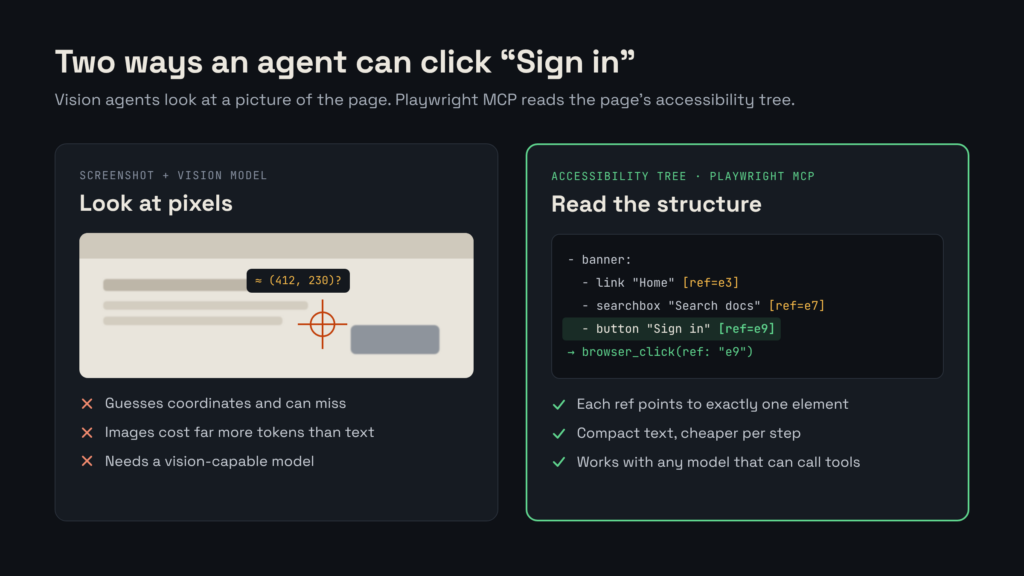
The obvious way to let an AI use a browser is to give it screenshots. Take a picture, ask a vision model “where’s the login button?”, get back coordinates, click there. Computer-use style agents lean heavily on this, and it can be impressive. It’s also slow, expensive, and a bit fragile. A model guessing that the button is “roughly at pixel 412, 230” can miss.
Playwright MCP takes a different route. It sends the model the page’s accessibility tree instead of pixels. The project’s README says it works purely on structured data and doesn’t need a vision model at all.
In practice it’s a spectrum, not a strict split. Tools like Browser Use and Stagehand mix page structure with screenshots, and Playwright MCP sits firmly at the structured end. (If you’re wondering about Chrome DevTools MCP, it’s aimed at debugging, such as network, performance traces and Lighthouse, rather than driving tasks.)
What’s an accessibility tree?
It’s a snapshot of the same semantic layer assistive tech is built on: roles, names and states, computed from the page (More on the accessibility tree).
The browser already builds it for every page: a tree of meaningful things like headings, links, buttons, text boxes and lists, each with a role and a name. All the purely visual noise (layout divs, decorative wrappers, CSS) is stripped away.
Playwright MCP serialises that tree into compact text and tags every element the agent can interact with using a short reference ID. A simplified snapshot looks something like this:
- banner:
  - link "Home" [ref=e3]
  - searchbox "Search docs" [ref=e7]
  - button "Sign in" [ref=e9]
- main:
  - heading "Getting started" [level=1] [ref=e11]
  - paragraph: Install the package and run your first test.
  - link "Read the guide" [ref=e15]
Copy
That’s the whole trick. To the model, a web page becomes a short outline it can read like any other text. When it wants to click “Sign in,” it doesn’t guess a position. It asks for a click on e9.
Why that’s a good idea
- It’s deterministic. e9 points at exactly one element. No “close enough” coordinates.
- It’s cheap(er). Text is far smaller than images, and any model that can call tools can use it. No vision model needed.
- It matches how Playwright already thinks. If you’ve written role-based locators like getByRole(‘button’, { name: ‘Sign in’ }), you’re already using the accessibility tree. The agent is just doing the same thing interactively.
Following the Loop: Snapshot, Decide, Act, Repeat
Let’s walk through a small task: “Search the docs for ‘accessibility’ and open the first result.” Here’s roughly what happens under the hood.
- Navigate. The model calls browser_navigate with the docs URL. The server loads the page and sends back a snapshot like the one above.
- Decide. The model reads the snapshot, spots searchbox “Search docs” [ref=e7], and decides that’s where to type.
- Act. It calls browser_type with target e7, the text “accessibility”, and submit: true to press Enter.
- Observe. The server performs the action, waits briefly for the page to settle, and returns a fresh snapshot. Now the snapshot contains a list of search results, each with its own ref.
- Act again. The model picks the first result link and calls browser_click with its ref.
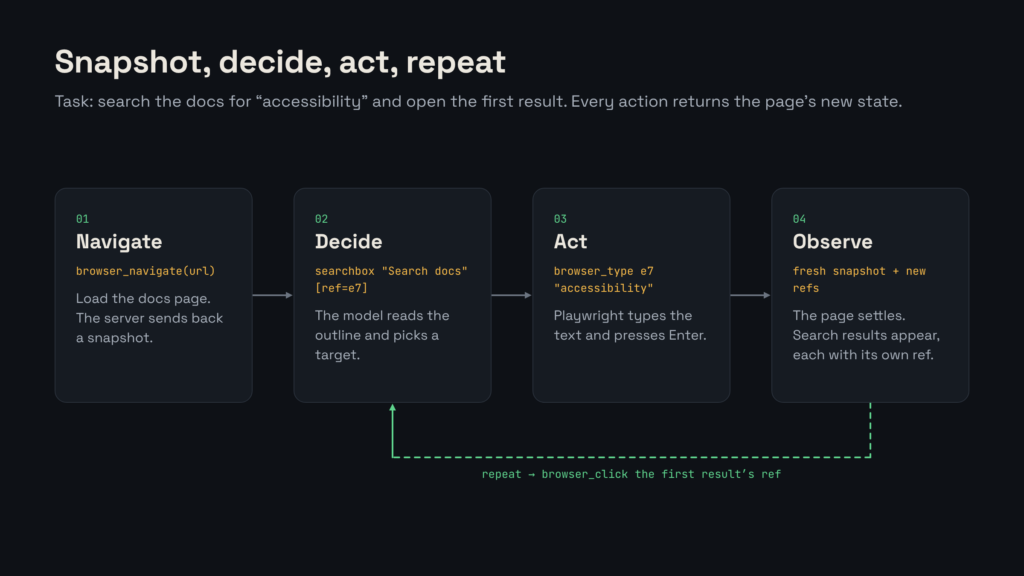
That’s the whole pattern. Every action returns the new state of the page, the model reasons about it, and it picks the next action. It’s the same observe-think-act loop that drives most agents, with the browser as the environment.
One nice detail: tools like browser_click also accept a plain-English description of the element alongside the ref (for example, “Sign in button”). Clients use that to show you what the agent is about to do, so when your editor asks “allow click on Sign in button?”, that’s where the wording comes from.
The Toolbox, Briefly
You don’t need to memorize the tool list, but it helps to know the shape of it. The core set covers what you’d expect from a person at a keyboard:
- Getting around: browser_navigate, browser_navigate_back, browser_tabs
- Seeing the page: browser_snapshot, browser_find, browser_take_screenshot
- Doing things: browser_click, browser_type, browser_fill_form, browser_select_option, browser_hover, browser_press_key, browser_handle_dialog, browser_file_upload, browser_evaluate (runs JavaScript on the page)
- Waiting and debugging: browser_wait_for, browser_console_messages, browser_network_requests
Note that screenshots still exist, but the tool description is upfront that you can’t act on them.
They’re for humans (or for checking visual layout), while snapshots are for doing things.
Beyond the core, you can opt into extra tool groups with –caps (the README lists vision, pdf, devtools, network, storage, testing and config). A few useful ones:
- vision adds coordinate-based mouse tools for the cases the accessibility tree can’t express, like drawing on a canvas.
- storage adds tools for reading and writing cookies, localStorage and sessionStorage.
- network lets the agent mock requests or simulate going offline.
- testing adds assertion tools and can generate Playwright locators you can drop into a real test.
- devtools adds tracing, video and browser_start_recording, which records what you do in the browser and hands it back as Playwright code.
Setting Up Playwright MCP (Claude Code, Cursor and Others)
Setup is refreshingly boring. It needs Node.js 18 or newer, and most clients accept the same config:
{
  "mcpServers": {
    "playwright": {
      "command": "npx",
      "args": ["@playwright/mcp@latest"]
    }
  }
}
Copy
In Claude Code it’s a one-liner:
claude mcp add playwright npx @playwright/mcp@latest
In Cursor, go to Settings → MCP → Add new MCP Server and use the command npx @playwright/mcp@latest.
The official package is @playwright/mcp. Don’t confuse it with the third-party “Playwright MCP Server” from ExecuteAutomation, which ranks for the same name. It’s free and open source (Apache-2.0). Make sure you’re on a recent version: anything before 0.0.40 is affected by CVE-2025-9611, a DNS-rebinding bug with a public proof of concept.
The README has copy-paste instructions for VS Code, Cursor, Codex, Copilot CLI, Windsurf and a long list of other clients, plus flags for headless mode, device emulation, proxies and isolated sessions.
Three settings worth knowing about early:
- By default, the browser uses a persistent profile, so logins stick between sessions. That’s convenient, but use –isolated if you want a clean slate every time (for example, in tests).
- If you want the agent signed in without typing passwords, use –storage-state to load saved cookies from a file.
- Extension mode (–extension plus the Playwright MCP Bridge extension) attaches the agent to your already open, logged-in Chrome or Edge tabs instead of a fresh browser. It’s convenient, but the agent then sees your real sessions.
Where It Gets Awkward
Playwright MCP is genuinely useful, but it’s worth knowing its limits before you lean on it.
Snapshots cost tokens
Every action returns a fresh snapshot, and on a busy page that snapshot can be large. Over a long task, those snapshots pile up in the model’s context window.
How much this matters is debated. One vendor benchmark found MCP used roughly four times the tokens of the newer CLI (more on that below). Others found the real-world gap much smaller once prompt caching kicks in, and newer MCP versions can keep snapshots on disk instead of in the conversation. Treat it as “worth watching,” not a settled number.
It only sees what the accessibility tree sees
Because the agent reads the same structure a screen reader does, it inherits the same blind spots. The biggest are unlabeled icon buttons, canvas-based apps and image-only content. Custom widgets built from bare divs are harder and less reliable, though there are fallbacks (–caps=vision, browser_evaluate). Many of the barriers that block screen reader users block agents too.
There’s an upside here: semantic, well-labeled markup helps both people using assistive tech and agents.
Want to see what an agent’s snapshot of your site looks like? Run a free agent-readiness scan with Honeyguide.
Whatever’s on the page ends up in the model
Snapshots include page content, so anything visible gets sent to the model, including customer data on an admin screen. There’s a –secrets option that masks known values in responses, but the docs describe it as a convenience, not a security feature, and the README is clear that Playwright MCP is not a security boundary. The same goes for browser_run_code_unsafe, which the README itself describes as equivalent to remote code execution.
Treat it like any tool that gives an AI access to your systems: point it at environments you’re comfortable sharing, and follow the MCP security best practices.
Pages can also talk back
A page the agent visits can contain text aimed at the model (“ignore your instructions and…”). This prompt-injection risk isn’t unique to Playwright MCP, but browsing the open web makes it more likely. Keep a human in the loop for anything that submits, buys or deletes.
What’s Changed Recently
The Playwright team has been busy chipping away at the token problem.
Leaner snapshots and a search tool. The July 2026 release trimmed snapshot output to reduce noise and added browser_find, which searches the snapshot for text or a regex and returns only the matching nodes with a little context. Think grep for the page.
If the agent only needs the ref for the “Add to cart” button, it no longer has to swallow the whole page to find it. The same release added a –mobile flag for quick mobile emulation; mobile layouts tend to be lighter, which also saves tokens.
Playwright CLI. The bigger shift is Playwright CLI, released in early 2026. It exposes the same browser abilities as plain shell commands, paired with an agent skill that teaches your coding agent how to use them:
playwright-cli open https://demo.playwright.dev/todomvc/
playwright-cli type "Buy groceries"
playwright-cli press Enter
playwright-cli snapshot
playwright-cli click e21
Copy
Same refs, same accessibility-tree idea. The difference is where the data goes. The CLI was built around saving snapshots to files and reading only what’s needed, and loads no large tool schema up front.
Sites can now hand agents tools directly
Everything so far assumes the agent has to work out the page on its own. WebMCP flips that: a site registers its own tools in JavaScript, like “search flights” or “add to cart,” and an agent can call them instead of clicking through the UI. It’s in a Chrome origin trial starting with Chrome 149.
Playwright MCP v0.0.82 (September 2026) lists a page’s WebMCP tools to the agent as webmcp_<tool>, and –no-webmcp turns this off. It’s useful, but it’s the prompt-injection problem in a new shape: the page now writes tool names and descriptions the model reads. The release notes treat them as untrusted input, and so should you.
Playwright MCP vs Playwright CLI
Microsoft’s README suggests coding agents might be better served by the CLI, and here’s how we’d read that:
- Use the CLI if you’re working with a coding agent (Claude Code, Copilot and similar) that has a shell. The agent is juggling your codebase, tests and browser work in one context window, so saving tokens matters most.
- Use MCP when the browser is the job: exploratory testing, self-healing tests or long-running workflows that need a persistent browser session. (Our addition: it’s also the natural pick for clients with no shell access.)
The good news is that the mental model carries over completely. Both read the accessibility tree, both act on refs, and both run on Playwright. Learn one and you understand the other.
Wrapping Up
So how does a text-only model click a button? It doesn’t look at the page at all. It reads a structured outline of it, picks an element by its ref, and asks Playwright to do the clicking. Then it reads the new outline and goes again.
That simple loop is why browser agents are now practical for scoped dev tasks, like checking a UI change or reproducing a bug, with a human watching. Its costs (token usage, accessibility blind spots, data exposure) are why the tooling keeps evolving. If you want to try it, add the MCP server to your client of choice, point it at a local app, and watch the snapshots go by. It’s the fastest way to build an intuition for what your agent actually “sees.”